Create and Assign an SSH Key
This tutorial walks through generating an SSH key pair and adding the public key to your GXP profile. An SSH key is required to clone and push to your plugin Git repositories over SSH.
- You must have Developer access on your team (see Add Developer Role)
- You need a terminal / command line on your development machine
Time: ~5 minutes
Steps
1. Check for an Existing SSH Key
Before generating a new key, check whether you already have one you can reuse:
ls ~/.ssh
If you see files like id_ed25519 and id_ed25519.pub (or id_rsa / id_rsa.pub), you may already have a key. You can skip to Step 3 and use the existing .pub file.
2. Generate a New SSH Key
Run the following command, replacing the email with your GXP account email:
ssh-keygen -t ed25519 -C "you@example.com"
When prompted:
- File location — press Enter to accept the default (
~/.ssh/id_ed25519) - Passphrase — enter a passphrase for added security, or press Enter to skip
Generating public/private ed25519 key pair.
Enter file in which to save the key (/Users/you/.ssh/id_ed25519):
Enter passphrase (empty for no passphrase):
Enter same passphrase again:
Your identification has been saved in /Users/you/.ssh/id_ed25519
Your public key has been saved in /Users/you/.ssh/id_ed25519.pub
If your system doesn't support ed25519, use ssh-keygen -t rsa -b 4096 -C "you@example.com" instead.
3. Copy Your Public Key
Copy the contents of your public key file to your clipboard:
macOS:
pbcopy < ~/.ssh/id_ed25519.pub
Linux:
xclip -selection clipboard < ~/.ssh/id_ed25519.pub
# or: cat ~/.ssh/id_ed25519.pub
Windows (Git Bash):
cat ~/.ssh/id_ed25519.pub | clip
The value will look something like:
ssh-ed25519 AAAAC3NzaC1lZDI1NTE5AAAA... you@example.com
4. Open Your GXP Profile
In the GXP dashboard, click your avatar or name in the top-right corner and select Profile (or Account Settings).
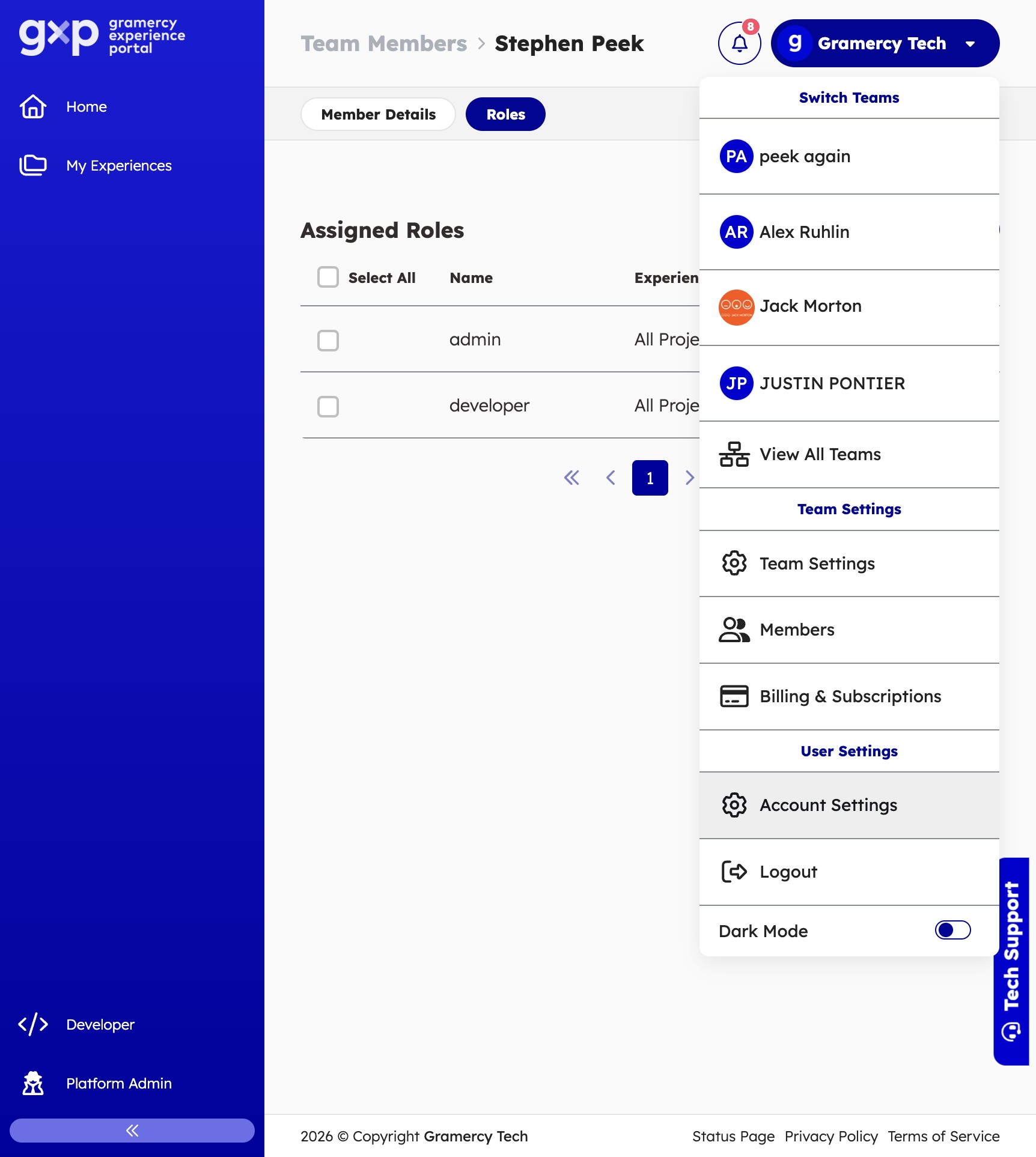
5. Navigate to SSH Keys
Inside your profile settings, select the SSH Keys tab.
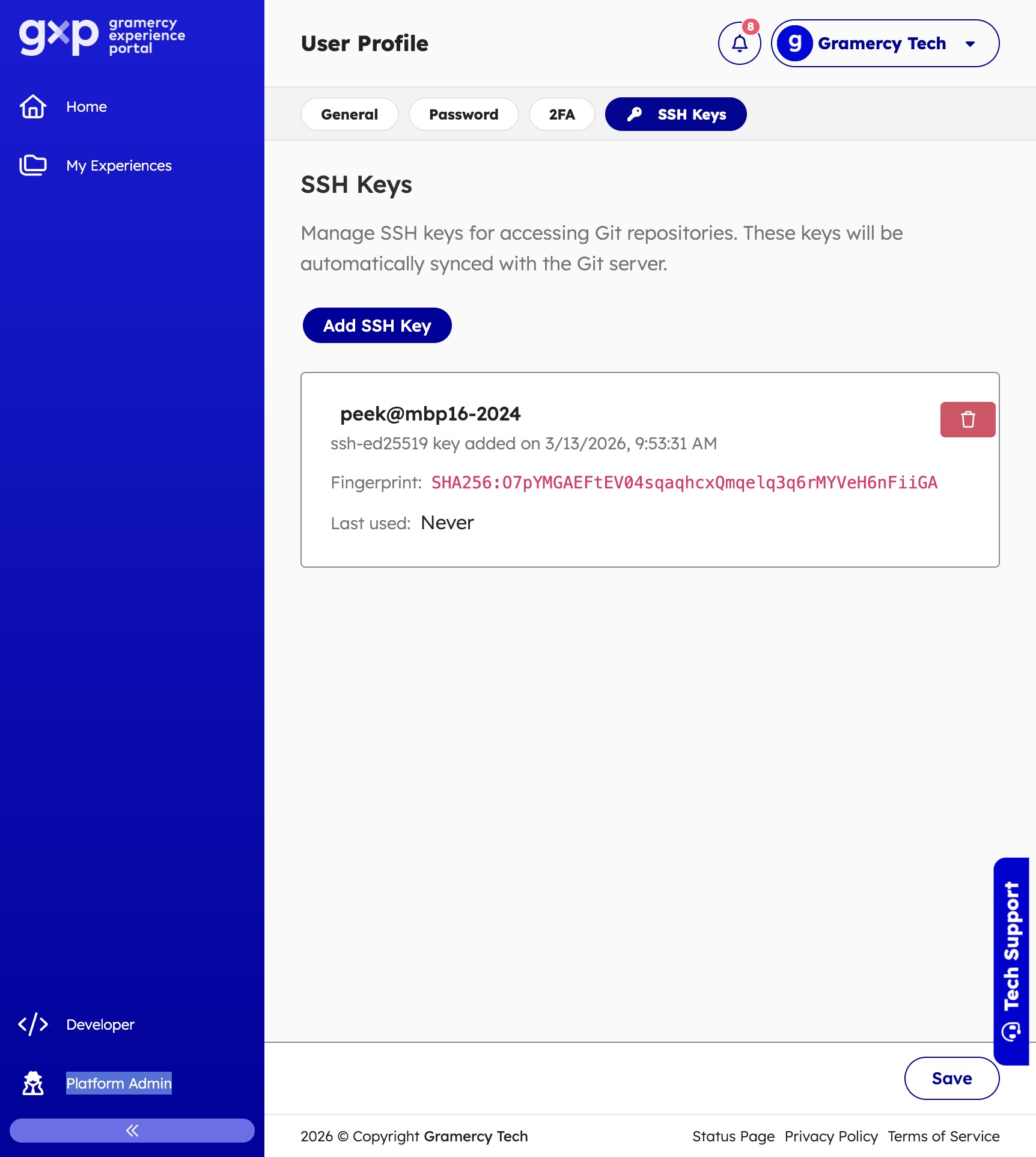
6. Add a New SSH Key
Click Add SSH Key.
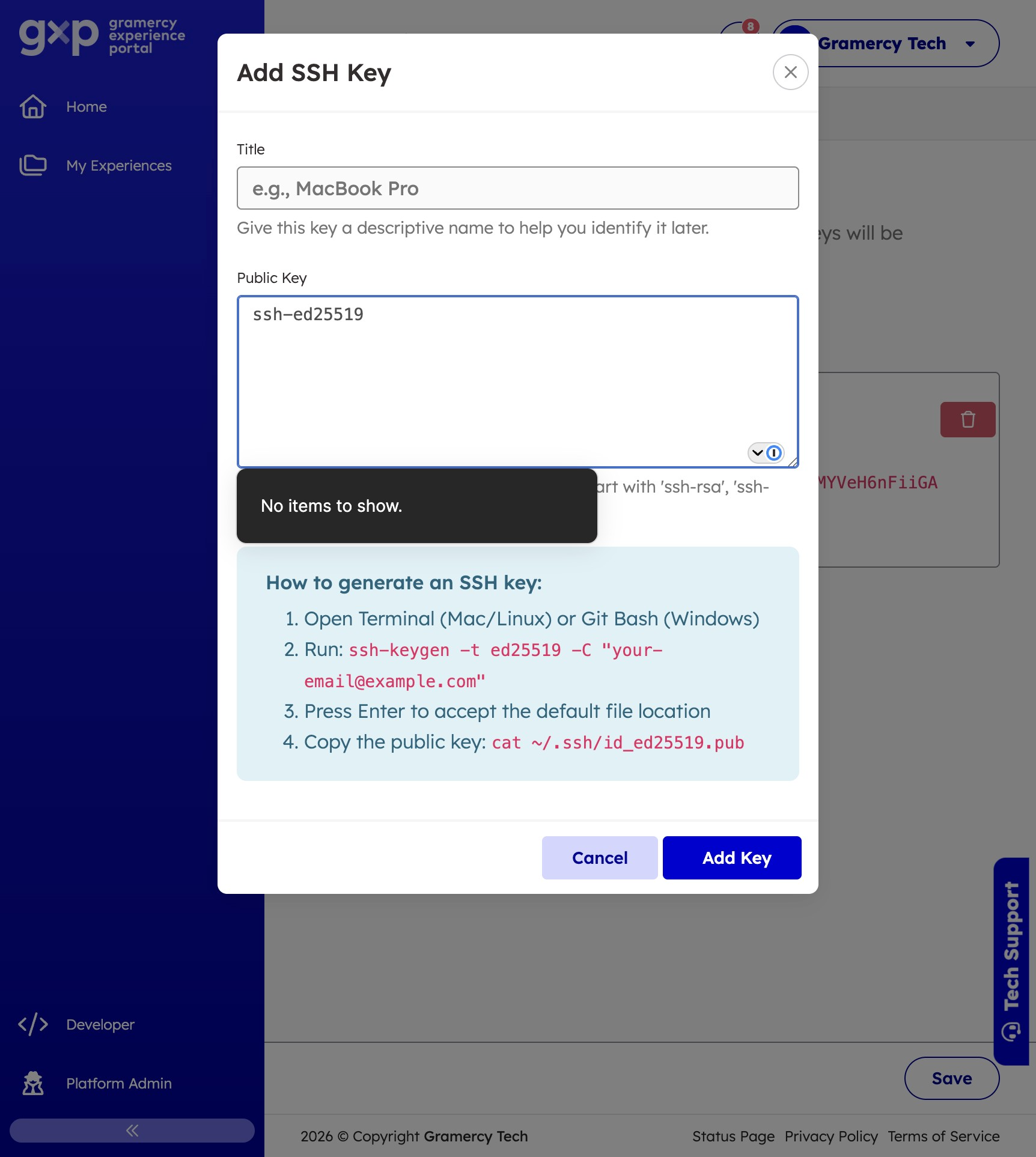
7. Paste Your Public Key
Fill in the form:
| Field | Value |
|---|---|
| Title | A descriptive name for this key, e.g. MacBook Pro 2024 |
| Key | Paste the full contents of your .pub file |
8. Save the Key
Click Save or Add Key. The key is automatically synced to the Gitea server — no separate step is needed.
9. Test the Connection
From your terminal, test that authentication works:
ssh -T -p 2222 git@git-ssh.eventfinity.app
The GXP SSH server runs on port 2222, not the standard port 22.
A successful connection returns a greeting message. If you see a permission denied error, double-check that you copied the public key (.pub file) and not the private key.
What's Next
- Create a New Plugin App — create a plugin template and clone its repo with your new SSH key