Add Developer Role to a Team Member
This tutorial walks through granting the Developer role to an existing member of your team. Developer access is required to create and manage plugins in the Developer Hub.
Prerequisites
- You must be a Team Admin or Team Owner for the team
- The user must already be a member of your team
Time: ~2 minutes
Steps
1. Navigate to Team Members
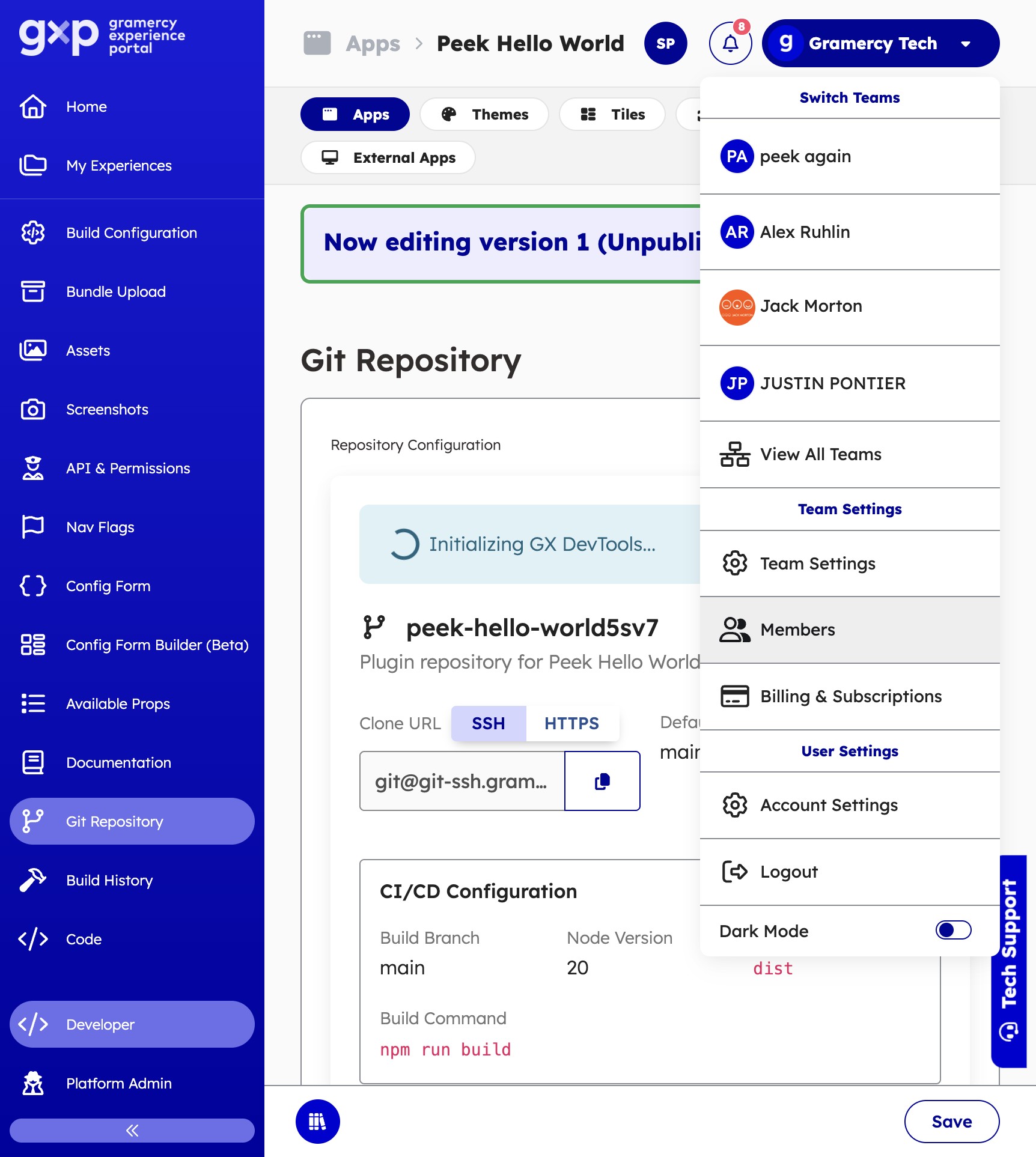
From the team dashboard, click Members in the right-hand navigation.
2. Find the Team Member
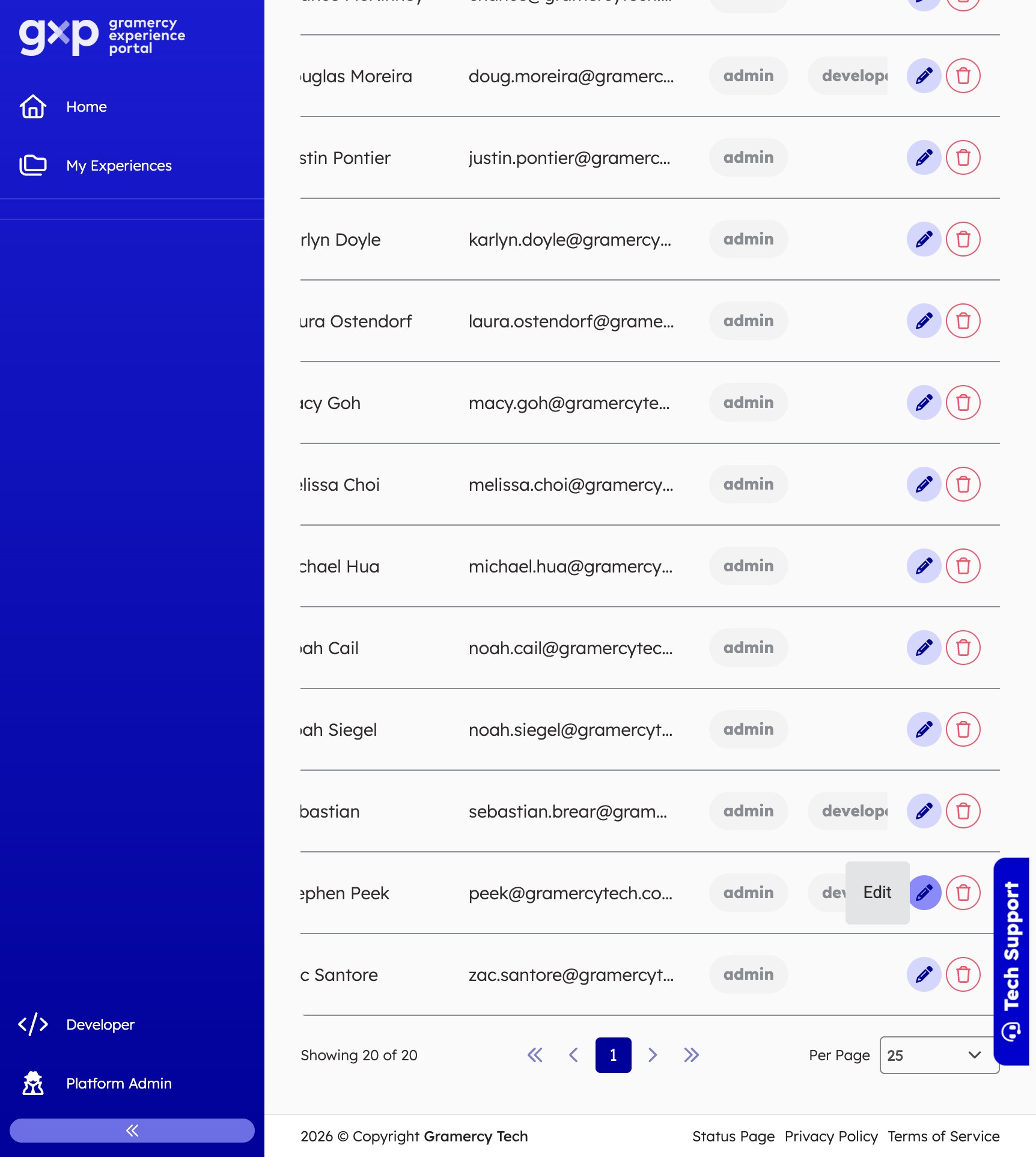
Locate the user you want to grant developer access to. You can use the search field to filter by name or email.
3. Edit the Member
Click the edit icon (pencil) next to the team member's row to open their role settings.
4. Navigate to the Roles Tab
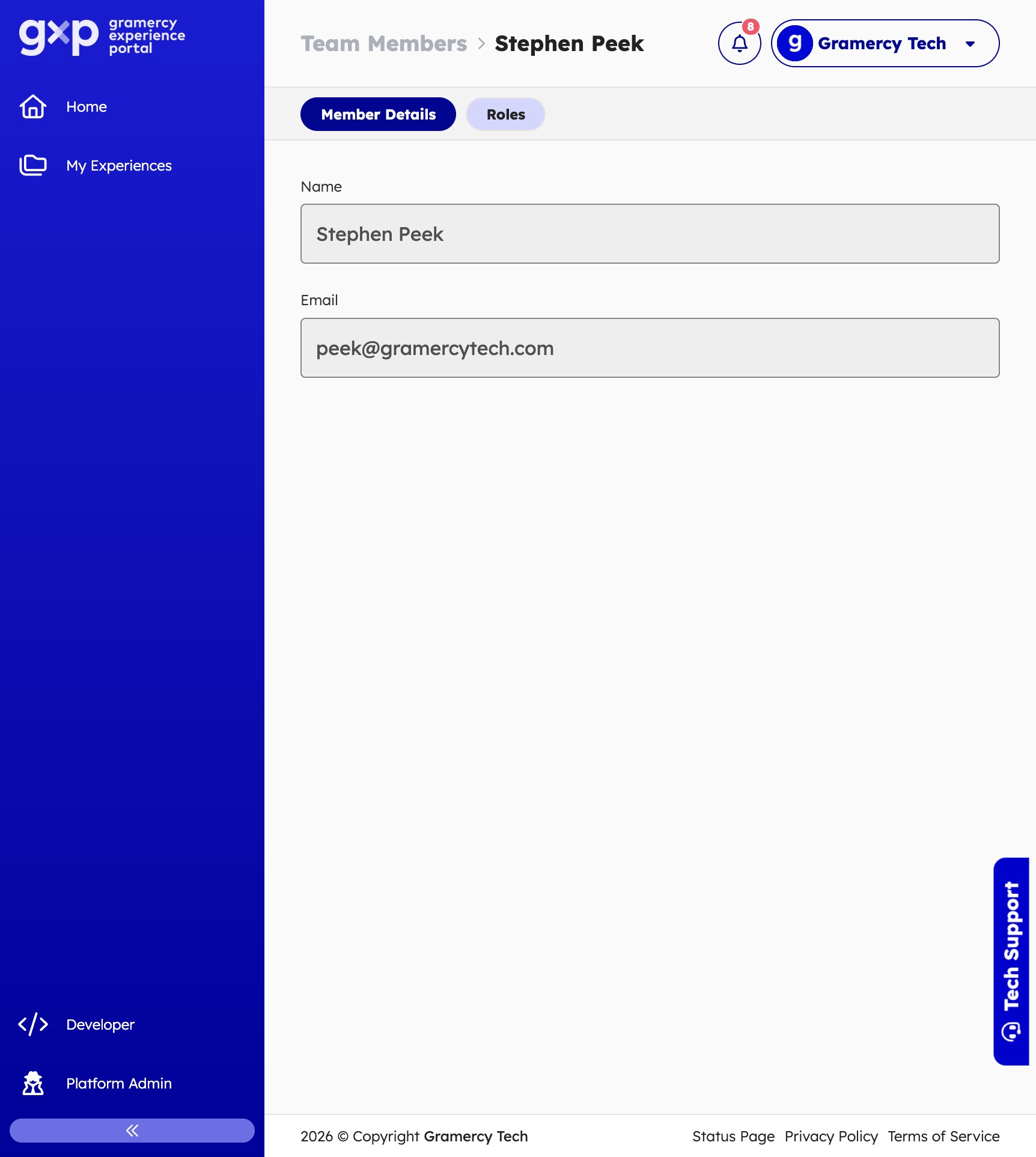
Click the Roles tab in the header.
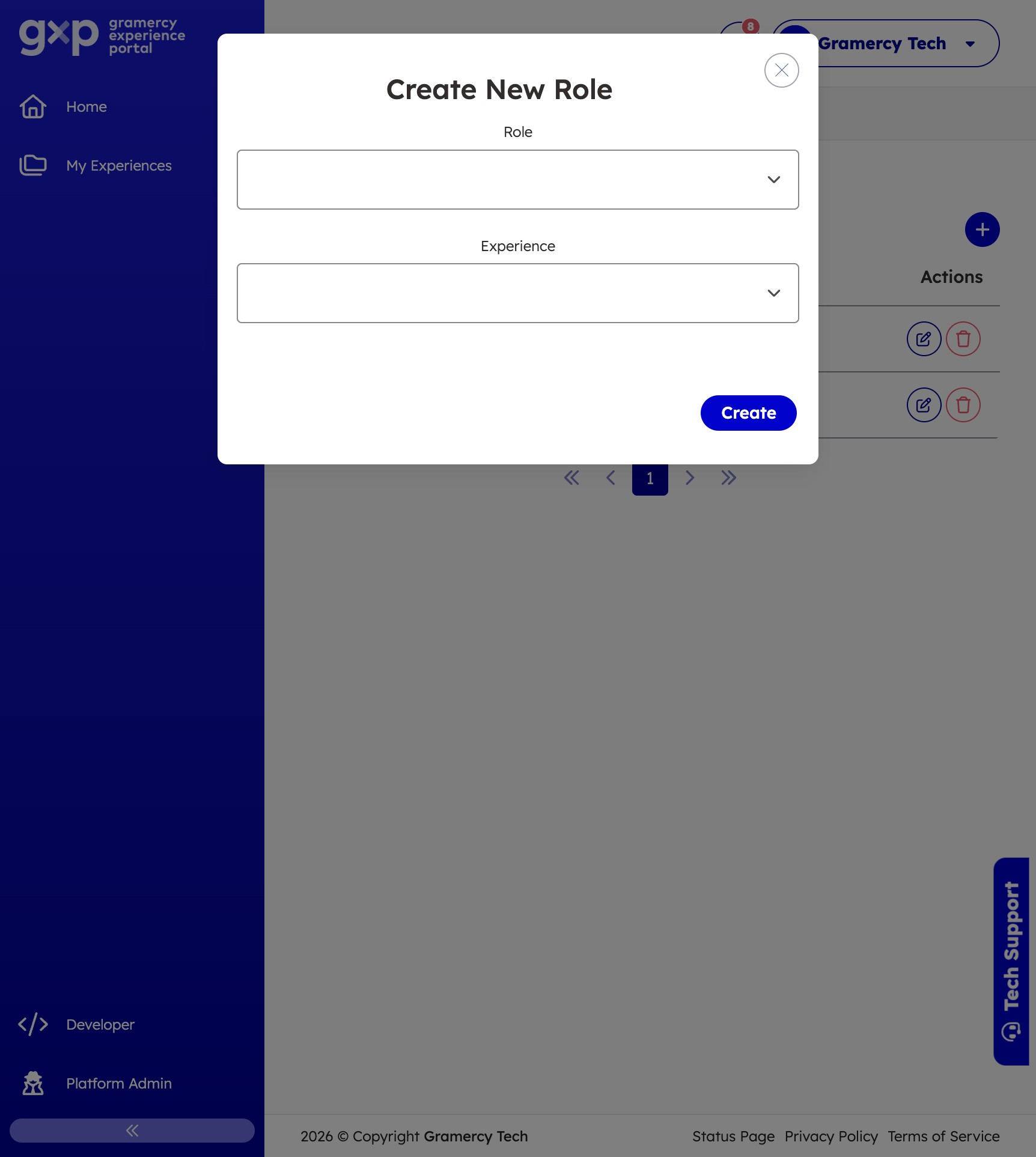
5. Add new Role
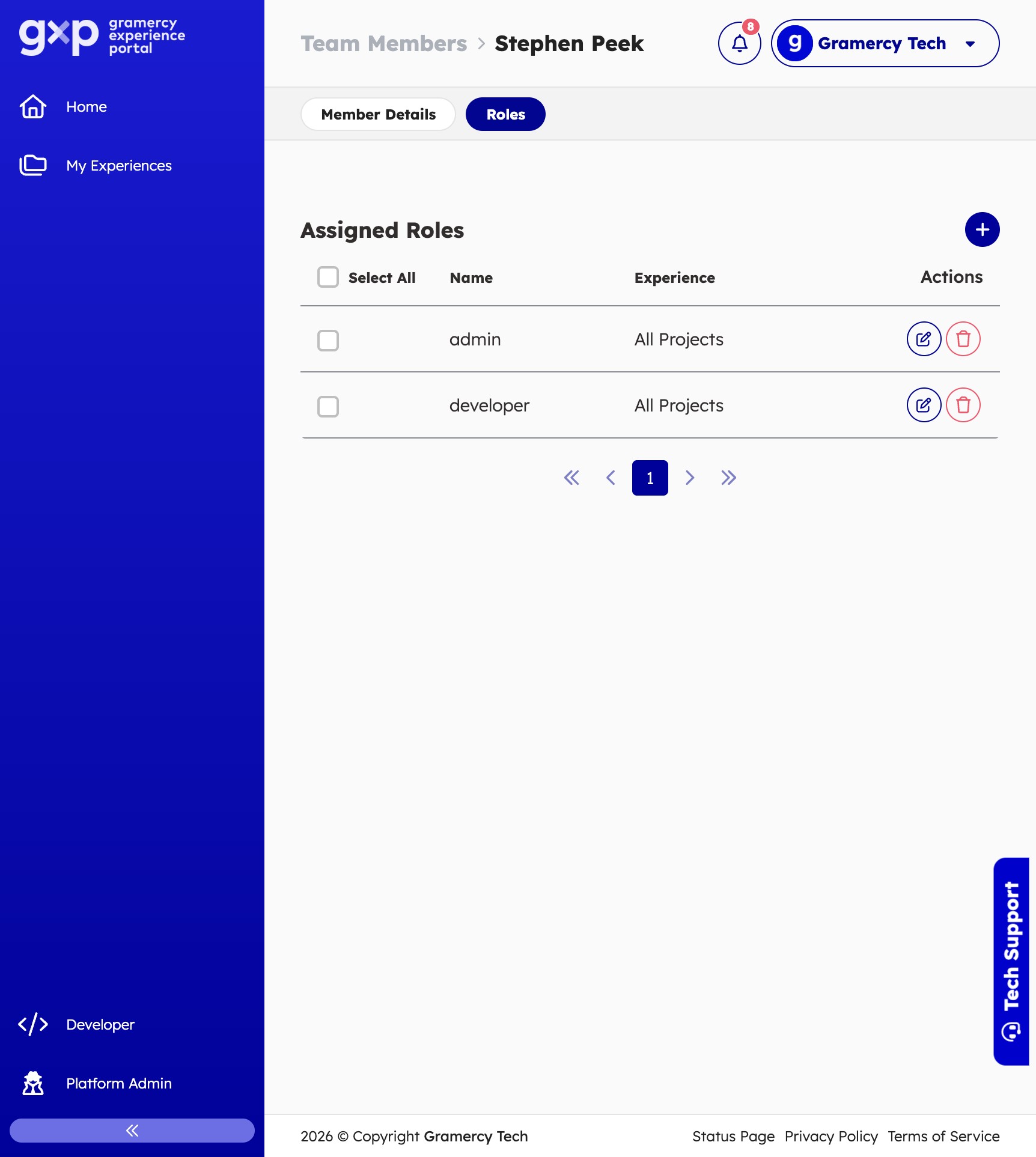
Click the plus button to add a new role to the member
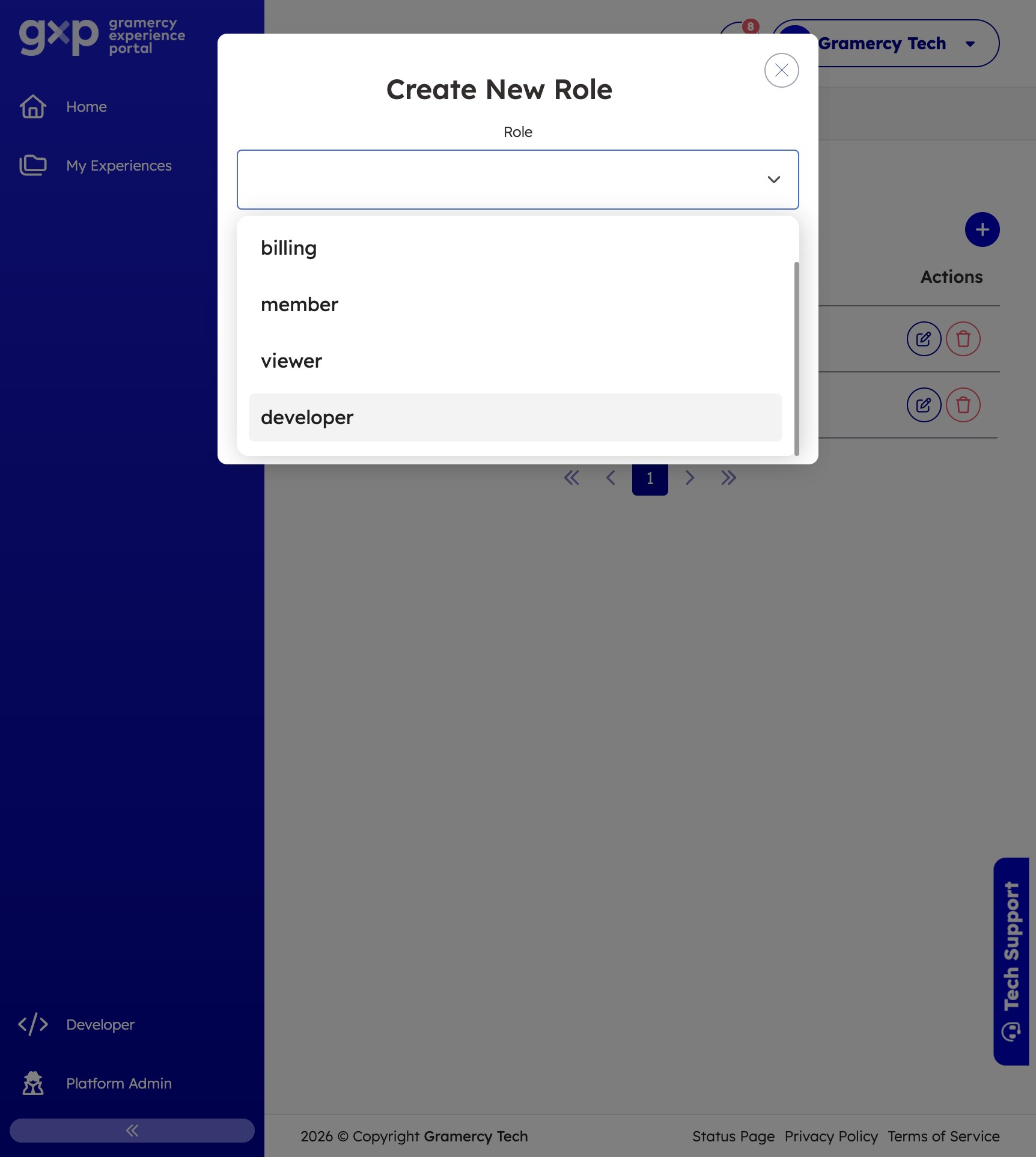
6. Select role from the dropdown
In the role dropdown menu, select Developer and then click create. This grants access to the Developer Hub and the ability to create and manage plugin templates.
What's Next
- Create & Assign an SSH Key — the developer will need an SSH key to clone their plugin repositories
- Create a New Plugin App — create the first plugin template in the Developer Hub